
You finally got your GoPro. You’re heading to the beach, snorkeling spot, or even a dive site for the first time, and you’re imagining those gorgeous, crystal-clear underwater shots you’ve seen all over YouTube and Instagram. Then you come home, pull up the footage and… it’s blurry, blue-tinted, shaky, or just completely grey and foggy.
Yeah. That happens to almost everyone the first time.
This GoPro underwater guide for beginners is basically everything I learned the hard way, plus what experienced divers and underwater filmers consistently talk about in forums and communities. If you’re about to take your GoPro underwater for the first time, read this first. You’ll thank yourself later.
Who This Is Actually For
If you own a modern GoPro (Hero 5 or newer) and you want to use it snorkeling, at the pool, or on shallow recreational dives, this guide is for you. You don’t need to be a professional diver or a filmmaker. This is for regular people who just want to come home with footage they’re actually excited to watch.
First Things First: Know Your Camera’s Depth Limit
Before you even think about settings or accessories, check what model you have.
Starting with the GoPro Hero 5, all newer GoPro models are waterproof to a depth of 10 meters without any additional housing. The Hero 6, 7, 8, 9, 10, 11, 12, and 13 all fall into this category. If you have an older model like the Hero 3 or Hero 4, you’ll need a separate waterproof housing to use them underwater at all. MOJOGEAR
So for snorkeling or casual pool use, most modern GoPros are totally fine straight out of the box. But here’s the thing a lot of beginners don’t realize: 10 meters goes faster than you think when you’re diving. If you’re going scuba diving or freediving to any serious depth, you’ll need a waterproof housing rated to at least 60 meters. The official GoPro protective housing and various third-party options will get you there. Don’t skip this. Flooding a camera at 60 feet is an expensive lesson. SpearFactor Podcast
The Biggest Shock: Your Footage Will Look Blue and Murky
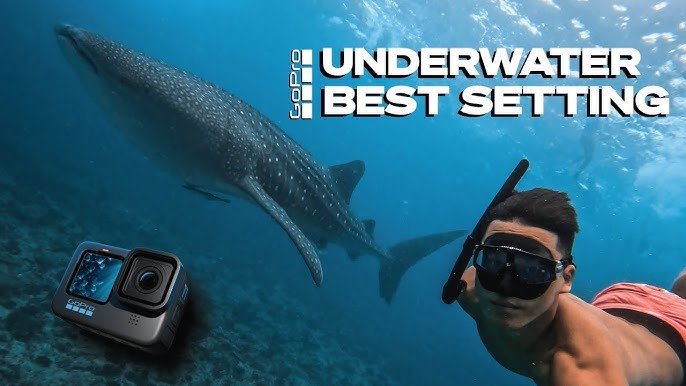
This is genuinely the number one thing that catches beginners off guard. You go underwater, film what looks incredible to your eyes, and play it back to find this dull, bluish-greenish mess.
You haven’t broken your camera. It’s just physics.
Water absorbs red light first. By 15 feet deep, most of your red tones are gone. By 30 feet, oranges are disappearing too. Everything shifts blue or green depending on the water conditions. This is why raw underwater footage often looks like it was shot through a blue-green filter.
There are two ways to deal with this, and both work:
Red/magenta filters are physical attachments that clip onto your housing or lens and physically add back the warm colors. They work reasonably well in blue tropical water between about 15 and 70 feet. In green water, a magenta filter is more appropriate. The downside is that filters are depth-specific. A filter tuned for 30 feet will overcorrect at 10 feet and undercorrect at 60 feet. So they’re not perfect, but for snorkeling in clear water they make a noticeable difference.
Also Read How to Mount GoPro on a Helmet Safely (And Actually Keep It There)
Color correction in editing is the other route. The biggest mistake new GoPro divers make is leaving their camera on the default settings, using HyperView and Natural color. On land, this looks awesome and vibrant. Underwater, HyperView’s distortion is too much, and the “Natural” color profile will try to “correct” the blue, often in a weird way. It ends up looking blotchy. Medium Instead, switch to Wide lens mode and a Flat color profile if you plan to do any editing at all.
One thing I noticed after talking to people who’ve been doing this a while: if you have zero interest in editing your footage, a red filter at snorkeling depth will give you more natural-looking video with zero extra work. If you do enjoy basic editing, shoot flat and fix it yourself.
Camera Settings That Actually Work Underwater
Here’s where it gets interesting, because the settings that look great on land can make your underwater footage look genuinely bad.
For most beginners, these are the settings worth knowing:
Resolution and frame rate: For most underwater use, 1080p at 60fps is a sweet spot. Most of the time anything over 60fps is overkill for underwater use. Higher frame rates mean larger file sizes, which could fill up your memory card and be difficult to play back on your computer. Underwater Photography Guide 4K is great if you have the storage and plan to edit, but it’s not necessary for your first time out.
Stabilization: Turn on HyperSmooth. HyperSmooth is pure magic. It’ll make your shaky, fin-kick-induced footage look like it was shot on a professional gimbal. The standard “On” setting is usually enough. “Boost” can sometimes crop in a little too much. Medium
Lens mode: Stick with Wide, not SuperView or HyperView. SuperView and HyperView are awesome on land, but they can look weirdly distorted and fish-eyed underwater, especially around the edges. Medium
Screen settings: Keep the screen at 100% brightness and set “Auto Off” to “Never” and “Screensaver” to “Never.” If you don’t do this, the default setting is 1 minute, after which the LCD screen will go black and you won’t be able to see what you’re shooting. Underwater Photography Guide That sounds like a small thing until you’re underwater trying to frame a shot with a black screen.
The Foggy Lens Problem Nobody Warns You About
Okay, so this one is genuinely annoying and ruins footage for a ton of first-timers.
You pack up your GoPro, it’s been sitting in a warm bag or car, you jump in the water and start filming… and your footage has this hazy, foggy vignette around the edges or just looks soft and weird. That’s condensation.
Action cameras can run quite hot, especially in 4K video mode. Dipping the camera in cold water causes any moisture trapped inside the housing to condensate and gather in and around the lens. Outdoor Wilds
The fix is simple and cheap: anti-fog inserts. These are small silica gel packets that sit inside your housing and absorb moisture before it can condense on the lens. They’re cheap, lightweight, and essential. Place one inside the housing every time. Breathing on the lens and wiping it is a myth, by the way. That actually makes it worse. SpearFactor Podcast
To be honest, a lot of people skip this step because it sounds overly cautious. Then they ruin an entire snorkeling trip worth of footage. Just grab a pack of anti-fog inserts, they cost next to nothing.
Also: don’t take your GoPro from a warm car into the cold water and start recording straight away. Leave it in the shade for about 30 minutes to acclimatize to the temperature first. Camera Butter
Battery Life Is Shorter Than You Think
Underwater use drains batteries faster, especially in cold water. Even with newer models, you’re looking at roughly 45 to 75 minutes of continuous recording depending on your settings. SpearFactor Podcast
For a single snorkeling session that’s usually fine. But if you’re doing multiple dives or a longer trip, bring a spare battery. Charge your batteries the night before and create a system for which battery is fully charged and which is used, so you don’t accidentally put in the dead one between dives. Underwater Photography Guide
The “I’ll stretch this battery across two dives” plan almost always ends with you missing the best moment of the day.
Practical Tips for Getting Better Footage
Get closer than you think you need to. This is probably the single biggest difference between mediocre and great underwater footage. That fish that looks huge and close in person will appear as a tiny blur on camera from 15 feet away. Visibility and clarity drop off fast with distance underwater. SpearFactor Podcast Get in close.
Move slowly and deliberately. Even with HyperSmooth, excessive body movement creates unwatchable video. When you spot something interesting, resist the urge to whip the camera toward it. Smooth, steady tracking shots are always more watchable than quick, jerky pans. SpearFactor Podcast Practice keeping your body still when something is happening near you.
Use a floating grip. When filming underwater, it can be difficult to hold the camera steadily. A floating grip, sometimes called a bobber, ensures the camera doesn’t sink and helps you get more stable shots. MOJOGEAR Plus, if you accidentally let go, the camera floats to the surface instead of sinking to the bottom.
Rinse with fresh water after every session. Salt and sand are the enemies of your camera’s seals and ports. After using your GoPro underwater, rinse it with fresh water to remove any salt or sand. This helps prolong the life of your camera and prevents corrosion. Camera Reviews
Honest Pros and Cons for Underwater Use
What actually works well:
- Modern GoPros are genuinely impressive straight out of the box for snorkeling depth
- HyperSmooth stabilization makes a huge difference compared to older models
- The wide-angle lens captures a lot in the frame without needing to think about zooming
- The form factor is small enough to not get in your way while swimming
- Footage at shallower, brighter depths can look genuinely stunning with a filter
Where it falls short:
- Without a red filter or post-processing, colors at depth look flat and blue
- Battery life drops noticeably in cold water
- The audio underwater is basically useless; water muffles everything
- In low light or murky water, the footage looks quite grainy and soft
- You’ll need additional accessories (housing, filters, anti-fog inserts) to get the most out of it at depth
What About Deeper Diving?
If you’re going scuba diving beyond snorkeling depth, the jump in quality between an entry-level setup and a proper one is real. Image stabilization matters more than resolution for most diving footage. If you’re choosing between an older model with higher resolution and a newer model with better stabilization, go with stabilization every time. SpearFactor Podcast
Also, one piece of advice from experienced divers that’s worth repeating: don’t let the camera distract you from safety. A camera that’s distracting you from safety or situational awareness is a net negative regardless of the footage it captures. If you’re diving with someone new or at a new location, leave the camera behind for the first dive. Get a feel for the conditions and the environment first.
FAQs: GoPro Underwater Guide Beginner
1. Can I use a GoPro Hero 11 or 12 underwater without a case?
Yes, both are waterproof to 10 meters (about 33 feet) straight out of the box, no housing needed. For anything deeper than that, you’ll want an official GoPro dive housing or a trusted third-party option rated to 50 or 60 meters. Always double-check that all ports and doors are fully closed before submerging.
2. Why does my GoPro footage look blue and washed out underwater?
Water absorbs warm colors like red and orange as you go deeper, which makes everything in your footage shift toward blue and green. This is normal. The fix is either using a red filter clipped to your lens or housing for in-water color correction, or shooting with a flat color profile and adjusting the colors in editing afterward.
3. What GoPro settings should I use for snorkeling or shallow diving?
A good starting point is 1080p at 60fps, Wide lens mode, HyperSmooth stabilization turned on, and if you’re editing, a flat color profile. Avoid HyperView or SuperView underwater as they cause distortion around the edges. Keep the screen set to “Never Off” so you can see your framing at all times.
4. How do I stop my GoPro from fogging up underwater?
The fog forms inside the housing when warm, humid air from the camera hits cold water. The most reliable fix is placing anti-fog inserts (small silica gel packets) inside your housing before every session. Also, let your GoPro acclimatize to the outside temperature for about 30 minutes before shooting instead of going straight from a warm car into cold water.
5. Do I need extra lights for underwater GoPro filming?
For snorkeling in shallow, clear water on a sunny day, usually no. But in deeper water or cloudy conditions, a small underwater video light makes a significant difference. Water absorbs light quickly, so the deeper or darker it gets, the more your footage will look flat and underexposed without a light source.
6. How long does a GoPro battery last underwater?
You can expect roughly 45 to 75 minutes of continuous recording, depending on your settings and the water temperature. Cold water drains the battery faster than warm water. For any serious session, bring at least one spare battery and charge everything the night before.
Final Verdict
Taking your GoPro underwater for the first time is exciting, but the gap between “excited beginner” and “person who actually gets usable footage” is mostly just knowing these few things in advance.
Modern GoPros are capable of genuinely beautiful underwater footage. The hardware isn’t the limiting factor. What holds most beginners back is going in with default settings, skipping the anti-fog insert, staying too far from subjects, and not understanding the color issue.
Fix those four things and your first underwater session will look dramatically better than the average beginner result. Start simple: wide mode, 1080p at 60fps, HyperSmooth on, a red filter if you’re snorkeling in clear blue water, and a floating grip so you’re not white-knuckling it the whole time.
The rest you’ll figure out as you go. That’s honestly half the fun of it.
