
So you just got back from a trail ride, a surf session, or maybe a weekend hike, fired up your laptop to watch the footage, and… it looks like your camera had a seizure. Every bump, every step, every little head turn turned into this nauseating wobble that makes the video almost unwatchable. Sound familiar?
Here’s the thing though: you don’t need a gimbal to fix this. Gimbals are great, sure, but they’re also bulky, expensive, and honestly a bit of a hassle to carry around on activities where you just want to focus on having fun. The good news is there are several real, tested ways to stabilize GoPro footage without spending a dime on new gear, or with very minor accessories that cost next to nothing.
This guide covers both shooting techniques and post-processing options, because the best results usually come from combining both.
Who This Is Actually For
If you’re a casual adventurer, a vlogger, a cyclist, a surfer, or someone who just bought their first GoPro and keeps ending up with shaky clips, this is for you. You don’t need to be a video editor. You don’t need pro gear. What you do need is a bit of patience and the willingness to try a few different approaches until one clicks for your shooting style.
Start With What’s Already in Your Camera: HyperSmooth
If you’re using a newer GoPro, like the HERO10, HERO12, or HERO13 Black, the first and easiest thing to do is make sure HyperSmooth is actually turned on. A lot of people forget about this or don’t realize it’s been switched off after a firmware update.
GoPro’s HyperSmooth 6.0, found on the HERO13 Black, uses both sensor and software techniques to reduce shake, and even includes an AutoBoost feature that dynamically applies the right level of stabilization based on your movement, while maintaining the widest field of view possible. VideoProc
That’s genuinely impressive for a built-in feature. On a smooth trail or a walk around a city, it does a surprisingly good job.
But here’s where it gets interesting, and a bit frustrating: once stabilization is baked into the footage during recording, it cannot be undone. The only controls you get are on and off, with no way to adjust the amount. Veedyou So if HyperSmooth does a poor job on a particular clip, you’re stuck with it. That’s the main reason many people prefer to shoot without it and handle stabilization in post-production where you have way more control.
Also worth knowing: GoPro’s built-in digital stabilization is extremely shutter speed hungry, and videos filmed in low light or in slow motion will still come out shaky even with HyperSmooth on. VideoProc So in dim conditions, it’s not the magic fix it seems.
Fix Your Body Mechanics First (Seriously)
This sounds almost too simple, but the way you hold and carry your body while filming makes a huge difference. Most people underestimate this.
Keeping your body in an upright position while filming, avoiding bending, and maintaining a straight back will noticeably improve the consistency of your footage. Think about it like walking with a glass of water on your head. Once you become mindful of unnecessary movements, your clips automatically get smoother.
Keeping the GoPro close to your face while filming is another trick that works because the head is one of the most naturally steady parts of the body. Roxio Head mounts, chin mounts, or even just pressing the camera against your forehead for a quick shot gives you that baseline steadiness.
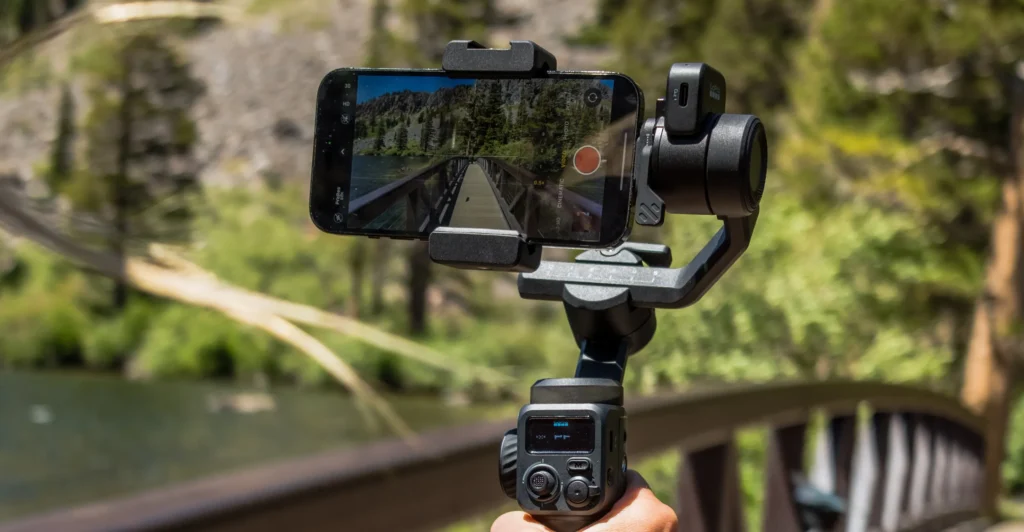
One thing I noticed is how much of a difference slow, deliberate movement makes when you’re panning or changing angles. Fast jerky movements are basically impossible to fix in post, while slow intentional movement almost always comes out clean.
Mount It Right (Or Mount It Differently)
A lot of shaky GoPro footage isn’t from movement itself, it’s from a loose or poorly positioned mount. A loosely positioned mount can result in unwanted movement and make your videos jittery Wondershare, even when you’re standing completely still.
Before every shoot, check that your mount is tight. Give it a wiggle. If it moves even slightly, tighten it more or re-position it.
Helmet mounts or DIY chin mounts create a stable platform for your GoPro with very little effort. Pinnacle Studio The chin mount in particular is something a lot of mountain bikers swear by. It keeps the camera at eye level, naturally absorbs head movement, and just tends to give smoother results than a chest or handlebar mount.
Here’s a weird tip that works: attaching the GoPro to a pole and shooting with the camera upside down while set to auto mode can result in smoother, steadier shots, because the weight distribution of the camera minimizes shake and jitter. CapCut It sounds strange, but the physics actually make sense. Try it.
DIY Stabilization Rigs
You don’t need to buy anything fancy. Stabilization rigs for GoPro are relatively inexpensive to purchase or incredibly easy to make yourself, and either way the result is a wobble-free way to shoot. Pinnacle Studio
People have built functional rigs out of PVC pipe, foam handles, even modified ski poles. The idea is just to add more mass and grip points to the camera, making it harder for small vibrations to translate into visible shake. This is basically the budget equivalent of a gimbal in terms of concept, though obviously not as precise.
Post-Processing: The Real Lifesaver
To be honest, this is where the biggest improvements happen. Even if your footage is already pretty smooth from shooting, running it through stabilization software can take it from “decent” to “looks like I used a gimbal.” And for footage that’s genuinely shaky, the right software can rescue clips you’d otherwise throw away.
Adobe Premiere Pro (Warp Stabilizer)
Premiere Pro’s Warp Stabilizer automatically analyzes clips and uses tracking data points across frames to apply the best stabilization settings, smoothing out unwanted camera movement with precision. Boris FX It’s honestly one of the best tools for this, and once you’ve used it a few times, it takes maybe 30 seconds to apply.
The downside: Premiere Pro’s Warp Stabilizer is CPU-intensive, which means it can dramatically slow down your computer, especially with longer footage or 4K clips. Veedyou If your machine isn’t powerful, expect to wait.
DaVinci Resolve (Free and Excellent)
DaVinci Resolve offers three stabilization modes: Perspective, Similarity, and Translation, each using a different algorithm depending on the type of shakiness in your footage. Motion Array The Translation mode is particularly useful for action camera footage where most of the unwanted movement happens along a single axis, like running or biking.
The free version includes the stabilization tools and that’s more than enough for most people. If you haven’t tried DaVinci Resolve yet and you’re on a budget, start here.
Gyroflow (The Hidden Gem)
This one deserves more attention than it gets. Gyroflow uses gyroscopic data that GoPros already record to stabilize footage with remarkable accuracy, corrects for lens distortion, and includes multiple smoothing algorithms including horizon leveling. Gyroflow
What makes it special: even handheld footage stabilized with Gyroflow can come out looking like it was shot on a gimbal, and the software is completely free. Gyroflow The community behind it is active, there’s solid GoPro support built in, and the results for action footage are genuinely impressive. If you’ve never heard of it before, go download it right now.
Practical Pros of Going Gimbal-Free
You save money, obviously. But beyond that, shooting without a gimbal keeps your setup lightweight and fast. There’s no battery to charge, no balancing act before you start, no bulk to manage when you’re mid-activity. For spontaneous shooting, that actually matters a lot.
Post-processing stabilization also gives you more flexibility. When you stabilize in post-production, you can adjust settings and go back to the original footage if something looks off, rather than being locked into whatever the camera decided to do in-camera. Veedyou
Honest Drawbacks
There are real limits here. Mechanical gimbals still outperform software stabilization in extreme motion scenarios, walking shots, and cinematic panning movements. Veedyou If you’re doing serious cinematic work, walking shots especially, software can only do so much.
Footage that is particularly shaky may be harder to stabilize in post-production, and you may even lose video quality during the stabilization process in some cases. VideoStudio The software crops and zooms the footage slightly to compensate for movement, which means you’re losing a little bit of your field of view. On 4K footage this is barely noticeable. On 1080p, it can look soft.
And if the original footage is really, truly terrible? Heavy motion blur, constant high-frequency vibration like motorcycle footage on rough roads, or near-total darkness? Even the best software won’t fully rescue it. The golden rule still applies: better source footage always leads to better results.
Quick Comparison: Which Method Works Best for What
For cycling and mountain biking, a chin mount plus DaVinci Resolve or Gyroflow in post is a pretty unbeatable combo. For walking and hiking, body mechanics plus HyperSmooth Max gets you most of the way there. For surfing and water activities, a chest or mouth mount with Gyroflow afterward tends to work well. For motorbike footage, you almost always need post-processing, and a handlebar mount with vibration dampeners helps before that.
FAQ
1. Can I stabilize GoPro footage completely for free?
Yes, absolutely. DaVinci Resolve and Gyroflow are both free and handle GoPro footage very well. You don’t need to spend anything to significantly improve your video quality in post.
2. Does HyperSmooth work for all GoPro models?
HyperSmooth has been included since the GoPro HERO5, but the quality varies significantly by model. Newer GoPro models incorporate digital stabilization technology, but may still struggle to eliminate all instances of camera shake, especially in extreme conditions or at high speed. CapCut The HERO10 and above have considerably better stabilization than older models.
3. Will stabilizing footage in post reduce video quality?
It can, slightly. Stabilization software crops and zooms the frame to compensate for movement, which reduces your field of view. For 4K footage this is usually not noticeable, but it’s worth shooting at the highest resolution you can so you have more room to work with.
4. What’s the best free software to stabilize GoPro footage?
For beginners, DaVinci Resolve is the easiest to get started with. For more advanced users who want gimbal-like results, Gyroflow uses the gyroscopic data already embedded in GoPro files to produce remarkably smooth results, and it’s completely free. Gyroflow
5. Is it better to shoot with HyperSmooth on or stabilize in post?
For casual sharing it’s fine to use HyperSmooth in-camera. For anything more serious, many experienced creators prefer to shoot without it and stabilize in post, since in-camera stabilization is permanent and can’t be adjusted or removed afterward, whereas post-processing gives you full control. Veedyou
6. What mounting position gives the smoothest GoPro footage?
For most activities, helmet or chin mounts tend to produce the smoothest results. Mounting the GoPro on a helmet or DIY chin mount provides a secure attachment that reduces shake and jitter even during fast-paced activities. CapCut The head is one of the naturally steadiest parts of the body, which helps a lot.
Final Verdict
If you walked away from a shoot with shaky footage and you don’t own a gimbal, don’t panic. Between HyperSmooth, proper mounting, shooting technique, and post-processing tools like DaVinci Resolve and Gyroflow, you genuinely have everything you need to turn shaky footage into something you’d actually want to share.
Start by making sure your mount is secure and your body mechanics are solid. Then bring that footage into Gyroflow or DaVinci and let the software do the heavy lifting. For 90% of use cases, that combination produces results that are honestly hard to distinguish from gimbal footage.
Buy a gimbal if you want. But you definitely don’t need one.
