
So you just came back from a trip, your GoPro is full of footage, and now you’re staring at both devices wondering why this isn’t as simple as it should be. Been there.
Connecting your GoPro to your phone sounds like a two-minute thing. Sometimes it is. Other times you end up restarting both devices three times and questioning your life choices. This guide walks you through the whole process clearly, including the parts most tutorials skip, like what to do when things don’t go as planned.
Who This Is For
Whether you just unboxed a brand new HERO13 or you’re dusting off a HERO8 that’s been sitting in your bag for six months, this guide has you covered. It works for both iPhone and Android users, and it covers both wireless pairing and wired connection options.
If you’ve already tried connecting before and it just didn’t work, scroll down to the troubleshooting section. That part might save you a lot of frustration.
Before You Start: The One Thing You Need
The only way to connect GoPro to phone wirelessly is through the GoPro Quik app. Every major GoPro model since the HERO3+ supports wireless connection to your phone through this app. TheSweetCamera There’s no workaround. No Bluetooth-only option through your phone’s settings. It has to be Quik.
You can grab it from the iOS App Store or Google Play Store. Just make sure the developer listed is GoPro, Inc., because there are some lookalike apps floating around. TheSweetCamera
Once installed, make sure your GoPro battery is reasonably charged. A low battery can actually interfere with the pairing process Action Camera Expert, which is annoying but true. Top it up before you start.
Method 1: Wireless Connection via GoPro Quik (Most Common Way)
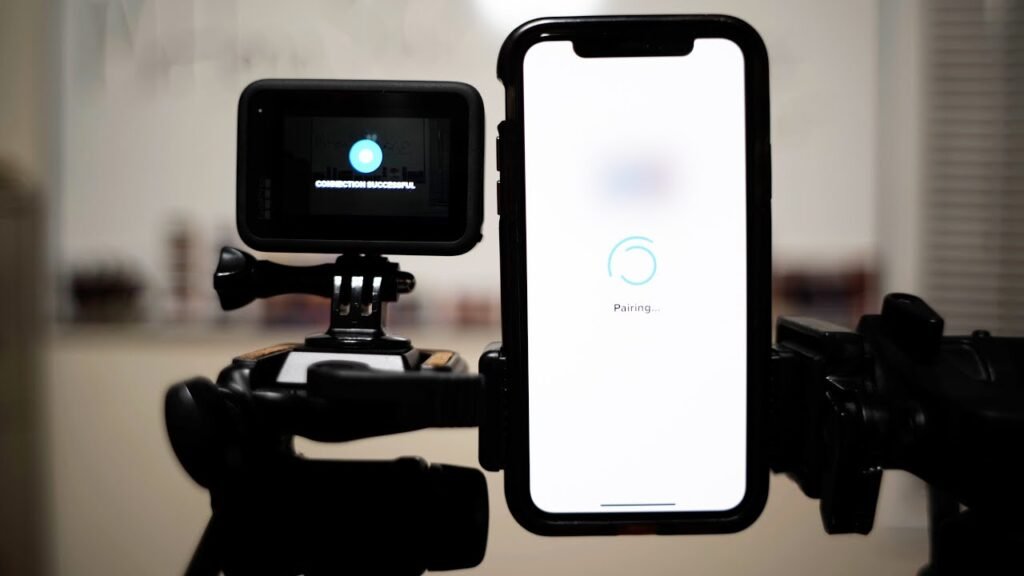
This is what most people use day-to-day and it works well once you’ve done it once.
Step 1: Get the GoPro Quik App
Download it from your phone’s app store. Open it up, create a GoPro account or log in if you already have one. The app will ask for access to Bluetooth, your local network, and photos. Grant all of these permissions, because the connection won’t work properly without them. TheSweetCamera
Step 2: Put Your GoPro in Pairing Mode
Turn on your GoPro. Swipe down on the camera screen to open Settings, then go to Connections, then Connect New Device, then select GoPro App. TheSweetCamera This puts the camera in pairing mode and makes it discoverable.
On older models the menu path might look slightly different, but you’re looking for anything that says “Connections” or “Wireless Connections.” It’s always in there somewhere.
Step 3: Connect in the App
Open GoPro Quik on your phone. When asked if you own a GoPro, select “Yep, I have a GoPro,” then tap “Pair my GoPro.” The app will automatically scan and find your camera since it’s already in pairing mode. TheSweetCamera
This usually takes about 10 to 20 seconds. The app connects using Bluetooth first, then hands off to Wi-Fi for actual data transfer and live preview. Bluetooth handles the initial pairing and basic controls, while Wi-Fi does the heavier lifting for transferring footage. Action Camera Expert
Once paired, you’ll see a live preview from your GoPro right in the app. From here you can change camera settings, start and stop recording remotely, and download clips directly to your phone.
Method 2: Wired Connection (More Reliable, Slightly Less Convenient)
Sometimes wireless is just finicky. Maybe you’re transferring a ton of large files, or you’re somewhere with a lot of wireless interference. In those cases, plugging in directly is the smarter move.
For Android users, a standard USB-A to USB-C cable is all you need. Plug it in, open GoPro Quik, and the app will automatically detect and connect to your camera. TheSweetCamera
For iPhone users, it’s a bit more involved. You’ll need a USB-C cable and Apple’s Lightning to USB Adapter. On a HERO9 specifically, you’ll also need to go into Settings on the camera, tap Connections, then USB Connection, and switch it to “GoPro Connect.” HERO10 users can skip that step. Then plug into your GoPro, connect the adapter to your iPhone, open Quik, and it auto-connects. TheSweetCamera
One thing worth knowing: only Apple’s official Lightning to USB Adapter works for this. Third-party adapters won’t do the job. TheSweetCamera
What You Can Do Once Connected
After you’ve successfully connected GoPro to your phone, the Quik app opens up a bunch of useful options.
You can browse and download specific clips without pulling everything off the camera at once, which is great when storage is limited. You can preview footage before downloading. You can use the app as a remote viewfinder, which is genuinely useful for selfie angles or mounting shots where you can’t see the screen. There’s also QuikStories, which automatically pulls your recent footage and creates an edited video with music. GoPro It’s one of those features that sounds gimmicky but actually turns out pretty useful when you’re too lazy to edit.
You can also update your GoPro’s firmware directly through the app, which is worth doing if you haven’t in a while.
Real-World Pros of Connecting Your GoPro to Your Phone
After using GoPro with the Quik app across multiple trips, here’s what genuinely works well:
The wireless pairing, once set up, is fast. Your phone and GoPro remember each other, so future connections are much quicker. You don’t have to go through the whole pairing process every single time.
Being able to preview and download specific clips is a big deal. You don’t need to drag out a laptop or card reader just to grab one video.
The remote control feature is surprisingly solid. Starting and stopping recording from your phone while your GoPro is strapped to a helmet or mounted somewhere out of reach is exactly the kind of thing that makes you feel like you have your setup dialed in.
Sharing straight from your phone is just easier. Once footage is on your phone, getting it to Instagram, WhatsApp, or Google Photos is instant.
The Honest Cons
Here’s where it gets a little real.
The initial pairing process can be unnecessarily fussy. Sometimes the app can’t find the camera on the first try. A lot of users in forums have reported that resetting the Wi-Fi on the GoPro before pairing again usually fixes this GoPro Forums, but you shouldn’t have to know that trick just to connect two devices you own.
If you haven’t used your GoPro in a few months and you’ve gotten a new phone since then, expect to re-pair from scratch. The pairing sometimes doesn’t carry over between phones or after a phone reset.
Some Android users have reported more connection trouble than iPhone users GoPro Forums, particularly on certain Samsung models. It’s not universal, but it comes up enough to mention.
Wi-Fi transfer speed isn’t the fastest either. Large 4K clips take a while to pull over wirelessly. If you’re moving a lot of footage, the wired method or just using a card reader and your laptop is genuinely faster.
And to be honest, the Quik app itself has mixed reviews. It works, but it’s not the most polished experience. The editing tools are decent for quick stuff, but don’t expect anything deep.
Troubleshooting: When Your GoPro Won’t Connect to Your Phone
This is the section most guides bury at the bottom or skip entirely. But if you’re here because your camera isn’t showing up in the app, here’s what actually helps.
Reset the Wi-Fi on your GoPro. Go into camera settings, find the option to reset Wi-Fi, then try the pairing process from the beginning. GoPro Forums This is the fix that works most often.
Restart both devices. It sounds basic, but restarting clears temporary software issues that can block the connection. Action Camera Expert Do it for both your phone and your camera before trying again.
Check app permissions. Make sure the Quik app has permission to access Bluetooth and location services on your phone. Action Camera Expert On some Android versions, location access is required for Bluetooth scanning to work, which is counterintuitive but true.
Update the app. App updates often include bug fixes that improve connectivity. Action Camera Expert If you haven’t updated Quik in a while, do that first.
Stay close to the camera. Walls, distance, and other wireless devices can all weaken the signal between your GoPro and your phone. Action Camera Expert For initial pairing especially, keep them within a few feet of each other.
If none of that works, try the wired connection as a fallback. It bypasses all the wireless headaches completely.
FAQs
Q: Do I need Wi-Fi or internet to connect GoPro to my phone?
No, you don’t need an internet connection. The GoPro creates its own Wi-Fi network that your phone connects to. You just need the GoPro Quik app installed and Bluetooth/Wi-Fi enabled on your phone.
Q: Why does my GoPro keep disconnecting from the Quik app?
This is usually a signal strength issue or interference from nearby devices. Try keeping your phone closer to the camera, move away from crowded Wi-Fi areas, and make sure the GoPro has sufficient battery. Resetting the camera’s Wi-Fi settings and re-pairing often resolves persistent disconnections.
Q: Can I connect GoPro to phone without the Quik app?
For wireless connection, no. The Quik app is the only official way to connect your GoPro wirelessly. For wired connections, some users have had limited success accessing the camera as a storage device through a file manager, but the Quik app is still the most reliable option.
Q: Does connecting GoPro to phone drain the battery faster?
Yes, noticeably. Using both Bluetooth and Wi-Fi simultaneously while previewing or transferring footage pulls more power from your GoPro’s battery. Keep your camera plugged in if you’re doing extended transfers.
Q: How do I connect GoPro to phone after getting a new phone?
You’ll need to re-pair from scratch. On your GoPro, go to Settings, then Connections, then Connect New Device, then GoPro App. Then open Quik on your new phone and follow the pairing steps as if it’s the first time. The previous pairing doesn’t transfer automatically.
Q: Can I connect multiple phones to one GoPro?
Not simultaneously. The GoPro can only maintain an active connection with one device at a time. You can pair different phones, but only one can be actively connected and controlling the camera at once.
Final Verdict
Connecting your GoPro to your phone is genuinely useful once it’s set up properly. The wireless pairing works well for day-to-day use, the remote control feature is legitimately handy, and being able to grab specific clips without pulling out a laptop makes the whole workflow a lot smoother.
The frustrating part is getting there sometimes feels harder than it should be. The initial pairing can be temperamental, and the Quik app has its rough edges. But once you’ve done it once and know the troubleshooting tricks, the whole process becomes second nature.
For most people, wireless through Quik is the way to go. If you transfer large files regularly or run into wireless problems, just use the cable. It’s less elegant but it’s rock solid.
Worth the setup effort? Definitely yes.
